
Field | Value |
|---|---|
Module ID | [REF-CATEGORY-###] |
Owner | Michelle Castillo |
Last Reviewed | March 2, 2026 |
Version | 1.0 |
Teamwork is our project management system that helps us track the work we complete for our clients. It allows us to collaborate remotely and to keep track of communication and status, so it's important to use this tool.
The goal is to use Teamwork to capture any communication, as much as possible (that said, Slack may be used for quick time-sensitive questions) and to avoid having work discussed (or lost/forgotten) in emails.
- You have access to the company Teamwork account
- You have access to Hubstuff and installe the timer app on your computer
Starting the Day with Teamwork
- When Teamwork tasks are assigned, they typically trigger a notification email.
- However, it is recommended that you check for tasks inside Teamwork at the beginning of every working day.
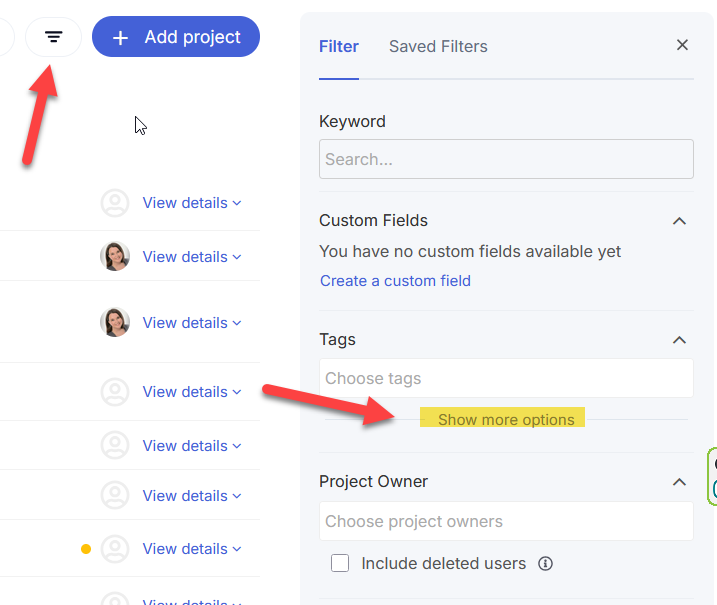
- To see your tasks, navigate to the "My work" tab at https://spotondigital.teamwork.com/app/home/work, then use filters to determine what to work on first.
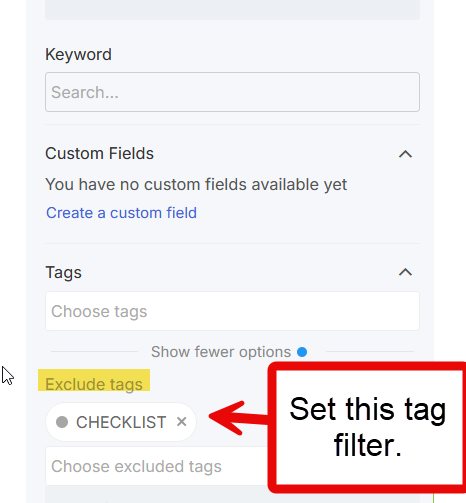
Often, "CHECKLIST" items can bloat your task list, making it overwhelming (when, really, a CHECKLIST item may take only a few seconds to a few minutes). It is recommended to filter your task list to exclude the "CHECKLIST" items so you can clearly see the main tasks.
This video shows how to set this tag filter in Teamwork:
While it is tempting to start with the tasks that you like most, it is important that you follow this priority and decide where to start.
- High-priority tasks: Sort your task list by "Priority" and use "(desc)" (descending) to see your red/high-flag tasks first at the top of the page.
- Overdue tasks - Sort your tasks list by "by Due Date" and use "(asc)" (ascending) to see any overdue tasks. Communicate and/or return to the assigner if you cannot complete the task by the due date (the assigner may indicate it's okay to extend/redate the due date).
- Due today - Sort the list by "Due Date" and use "(asc)" (ascending) to see any tasks due today.
Check the Priority and do any Medium/yellow flag tasks first.
Communicate and/or return to the assigner if you cannot complete the task by the due date (the assigner may indicate it's okay to extend/redate the due date). - If time remains
Sort the list by "Due Date" and use "(asc)" (ascending) to work on other tasks in the order in which they are due.
You may need to check if a later Start Date has been used. This usually means there is an item or event pending.

If you feel overwhelmed trying to determine what to work on first, please reach out to Michelle or Stacey via Slack to help prioritize.
Important notes
Use the Hubstuff timer to track the time spent on tasks.
Always use the "Notify by Email" checkbox when assigning/turning tasks to another team member.
If a task includes CHECKLIST sub-tasks, work through them carefully, as they represent the standard of work expected and serve as a guide for completing the work. DO NOT assume you know what's inside (changes are ongoing to our processes) and just check them off at the end. Actively go through them. These tasks are not turned back to the person who assigned them.
Include a confirmation comment (can be as simple as "Done") when you have completed a task so the person you assigned to knows the work has been done (and the task wasn't accidentally closed by mistake).
Comments are closed.