
Field | Value |
|---|---|
Module ID | [REF-CATEGORY-###] |
Owner | Michelle Castillo |
Last Reviewed | March 3, 2026 |
Version | 1.0 |
Completing teamwork tasks as needed, when a task is assigned by any team member or manager.
Validation for success: The expected need/outcome for the task has been met, the task is turned back to the person who assigned the task, and the person assigned is satisfied the need/outcome has been met and closes the task.
You have access to the Company Teamwork account
You have access to Hubstuff and install the timer app on your computer
Procedure
- When a new task is assigned, the specified team member should receive a notification email. The notification email should indicate who assigned the task. That said, in case of error or missed notification emails, team members should regularly check their "My Work" tab for new and/or outstanding assigned tasks: https://spotondigital.teamwork.com/app/home/work
- Upon first opening the task, the team member should use the "Start Timer" button to track work on the task. I small pop-up will appear in the browser window related to the task.
- The team member should review the newly assigned task and details, taking note of tags (if any), priority setting (if any), start date, and due date.
- NOTE: Some tasks may have a later Start Date if they involve waiting for content or a future event. Please take time to notice the suggested Start Date. All dates/times listed are North American times/dates.
- NOTE: Some tasks may have a dependency involving another team member (in other words, someone else on the team has to complete a related task/sub-task before you can work on your part). If your task/sub-task involves a dependency, the circle beside your name you usually check to mark the task as complete will be red with a line in the middle (see screenshot below).

- If you hover over the red circle with the line, it will tell you what task(s) need to be completed first. You can also click on the related tasks if you need to visit them and communicate with other team members if deadlines are pending and you are waiting to move forward.

- Assuming everything needed to proceed is available, the team member would complete the task as assigned.
- NOTE: If there are CHECKLIST sub-tasks, these tasks should be used as both a guide and a double-check to ensure the work is completed to a specific standard. Do not close these tasks without reviewing as changes may be made since the last go-through. CHECKLIST sub-tasks do not need to be turned back to the person who assigned. They should be closed when the specific step has been completed and confirmed.
- If the task will require multiple days, it is helpful to include periodic comments, tagging the person who assigned, to indicate status/progress.
- Review the "Issues" and "Exceptions" sections later in this SOP for things that might come up while working on your task.
- Upon completion of the task, the team member would:
- Add a note of confirmation in the comments area (including any links generated or helpful information that would confirm to the person who assigned the task is complete), tagging the person who assigned in the comments (i.e. use a @ symbol followed by the team member name).
- Edit the task to select the "Ready for review" tag from the tag dropdown list.
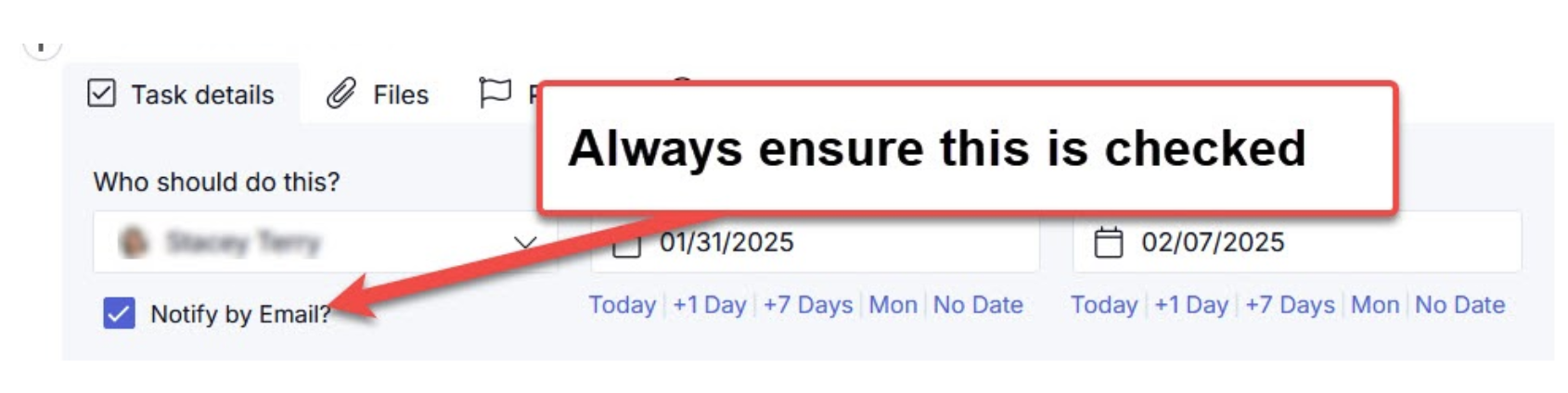
- Edit and assign the task back to the person who assigned. When assigning the task back, always check the "Notify By Email" checkbox - see screenshot below.
- Stop the task timer and include a brief description of what was completed.
- Once the task has been turned back with a "Ready for review" tag, review the task/work completed to ensure everything is done to the expected outcome/standard.
- If work is incomplete or new updates are needed:
- Add a comment outlining what needs to be addressed in the comments area, tagging the relevant team member.
- Assign the task back to the intended team member (and notify them via the checkbox).
- Pass the task back and forth with comments until you are satisfied the intended outcome is met.
- Once the outcome is met, the task may be closed.
- Questions:
- If the team member has any questions about the task that prevent starting on / completing the task, unless a conversation can occur via Slack that addresses the concerns, they should:
- Put questions in the comment area, tagging the person who assigned in the comments (i.e. use a @ symbol followed by the team member name).
- Edit and assign the task back to the person who assigned. When assigning the task back, always check the "Notify By Email" checkbox.
- Add an appropriate tag such as: waiting for response, pending content, to be discussed with Michelle (or whatever tag best matches the situation).
- If the team member has any questions about the task that prevent starting on / completing the task, unless a conversation can occur via Slack that addresses the concerns, they should:
- Workload / Capacity:
- If the team member is unable to complete the task by the due date, they should:
- Add a comment about the ability to handle/turnaround the task (and if possible, estimate when the deadline could be) in the comment area, tagging the person who assigned in the comments (i.e. use a @ symbol followed by the team member name).
- Edit and assign the task back to the person who assigned. When assigning the task back, always check the "Notify By Email" checkbox.
- If the team member is unable to complete the task by the due date, they should:
- If a task is a sub-task and starts with the word "CHECKLIST" it should not be reassigned back to the person who assigned. The CHECKLIST sub-tasks should be completed as they are verified (i.e. the step discussed in that sub-task has been completed and/or double checked).
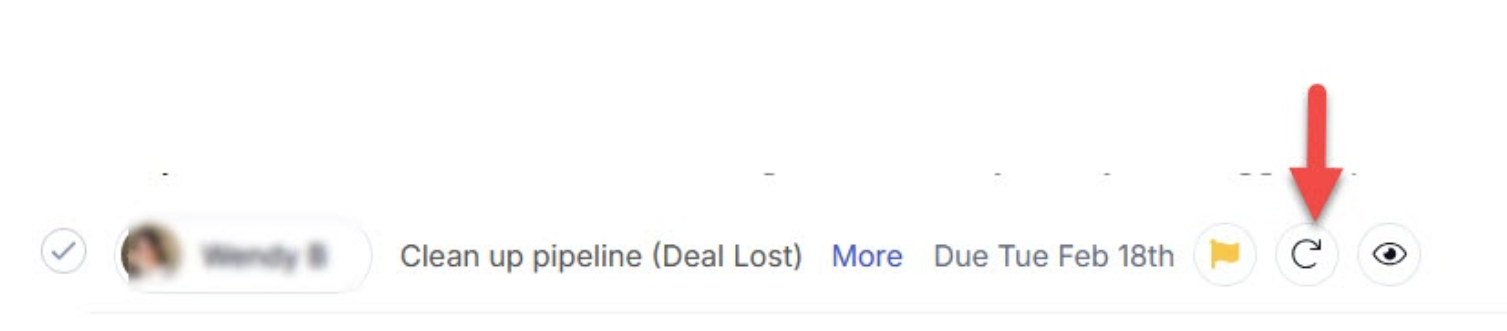
- Tasks that repeat on a set schedule do not need to be assigned back to the person who assigned because the team member needs to remain as the task owner. These tasks will include the following symbol:
Escalation if not successful
Reach out to Michelle or immediate Supervisor for any questions or concerns.
Successful Conclusion
The Teamwork task needs has been completed and the task is assigned back to the person who assigned (unless the task is noted as an EXCEPTION and can be closed).
Comments are closed.